
Clear a site's cookies and data
What to do when a site doesn't load properly or doesn't show the latest changes.
If a site doesn’t load properly or doesn’t show the latest changes, the browser may be using old data stored on your device. Clearing that data makes the browser download the newest version of the site.
Reload the page without the cache
First of all, try reloading the page while ignoring the stored data, with the shortcut Ctrl + Shift + R (on a Mac, Cmd + Shift + R).
Clear the site’s cookies
The steps are similar in most browsers, on computers and phones. The pictures are from Google Chrome on Android.
-
Open the site and tap the icon next to the address, in the address bar.

-
In the window that opens, choose Cookies and site data.

-
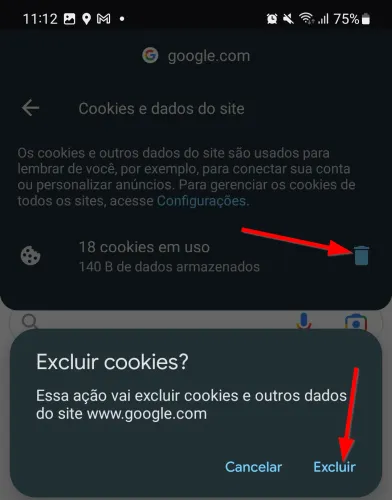
Tap the trash icon and confirm. You’ll need to sign in again to the systems you used on that site.


Test in an incognito window
An incognito window doesn’t use the cookies from your normal browsing. Open the site in an incognito window and see whether the problem continues:
- Google Chrome: Ctrl + Shift + N
- Microsoft Edge: Ctrl + Shift + N
- Mozilla Firefox: Ctrl + Shift + P

Still not fixed?
Try another browser or another device. If the problem continues on all of them, it’s probably in the site itself. If the site is hosted at Raszio, contact our support.